How do I resolve the “Could Not Start QuickBooks” error ?
Last updated: May 19, 2026
End users may run into the following error:
"Could Not Start QuickBooks"
This is usually due to configuration issues such as QuickBooks Desktop being closed, the wrong company file being open, or the file path being incorrect.
How do I fix this issue?
The end user will need to complete the following steps:
Ensure QuickBooks Desktop is open and running.
Confirm that the end user is logged into the correct user by checking the company file path being used. They can press
F2orCtrl+1in QBD to open the product information window and check the company file path field. Have them send the company file path to you and then ensure that it matches the file path that is filled out in your dashboard athttps://dashboard.rutterapi.com/connections/<connection_id>/settings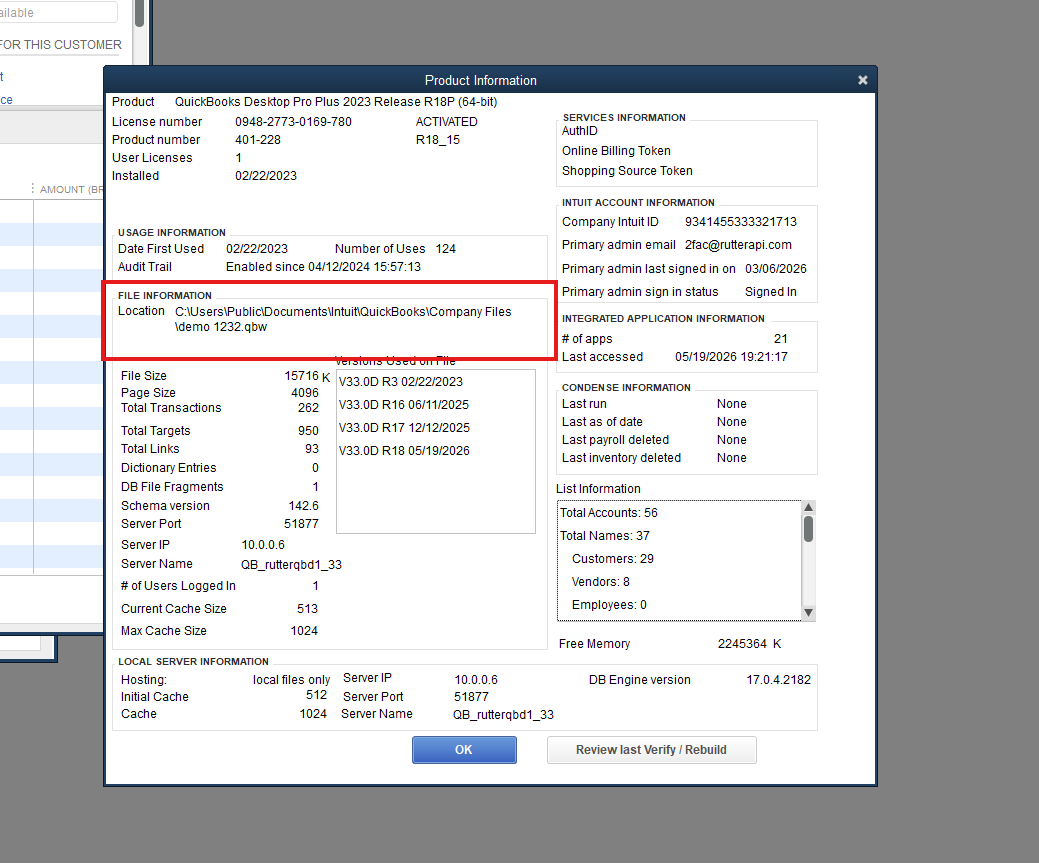
Confirm you have the correct permissions by going to:
Edit → Preferences → Integrated Applications → Company PreferencesWhen you open this screen, make sure that the
Don't allow any applications to access this company filebox is NOT checked. If this box is checked, uncheck it.Then go to
Edit → Preferences → Integrated Applications → Company Preferences -> properties. A new window will appear. Confirm that the fieldAllow this application to read and modify this company filebox IS checked. If this box is not checked, go ahead and check it.