How do I resolve "You do not have permission" errors?
Last updated: January 8, 2026
End users may run into the following error:
"You do not have permission for API operation QUERY on objects of type GLACCOUNT" or similar permissions errors.
This usually occurs when the user that was used to authenticate the Rutter connection does not have the correct permissions to access that object on Sage.
How do I fix this issue?
1) Have the end user add full admin permissions to the authenticated user
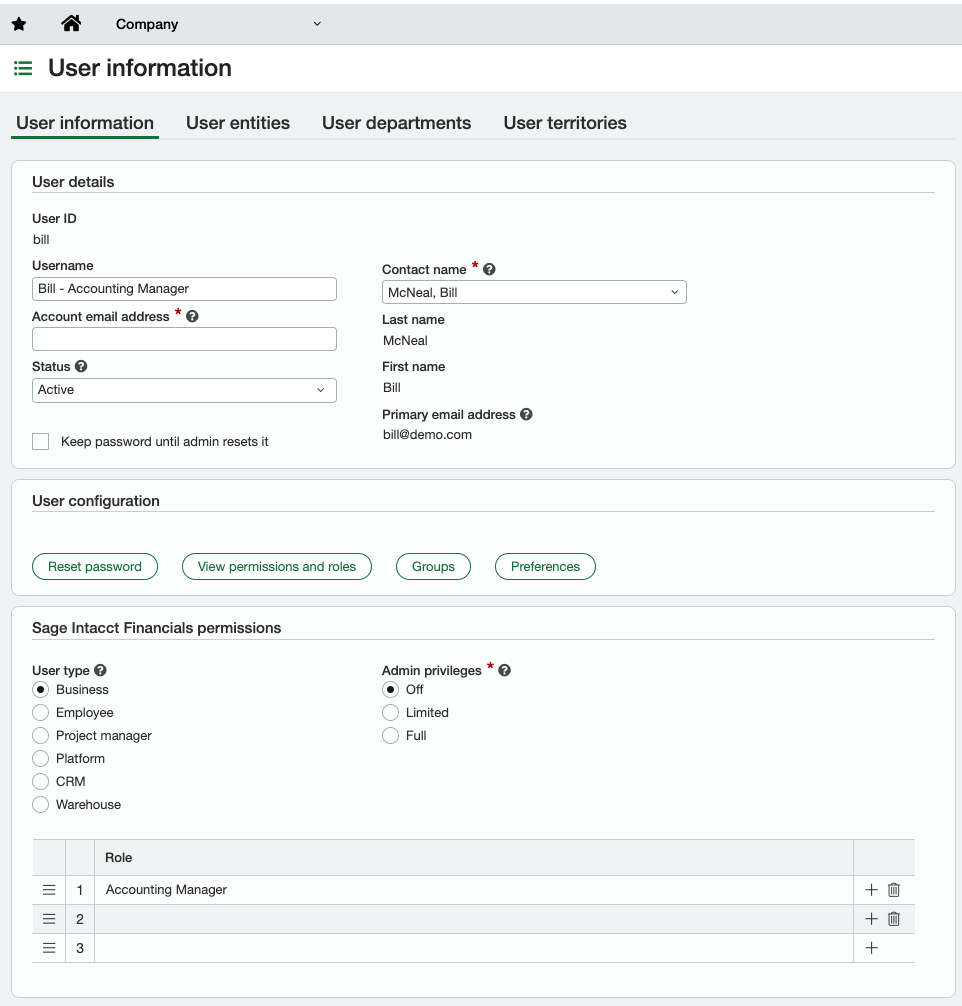
We highly recommend giving the user used to authenticate the Sage Intacct connection full admin permissions, which in most cases will resolve the issue. You can do so by logging into your Sage Intacct account and navigating to Company → Admin → Web Services users. Change the "User Type" to "Business" and "Admin Privileges" to "Full".
2) Have end users add the specific permissions that are causing errors
In the event that granting admin permissions does not fix the issue, or that the end user does not want to use admin permissions, you can have them add the specific permissions that are causing issues.
In Sage Intacct, a user's permissions are determined by the Subscriptions that their assigned Roles have.
You can view the roles that a user has by going to Company -> Admin -> Users -> Edit. You may also add or delete roles here.
And you can see what Subscriptions a role has by going to Company -> Admin -> Roles -> Subscriptions.
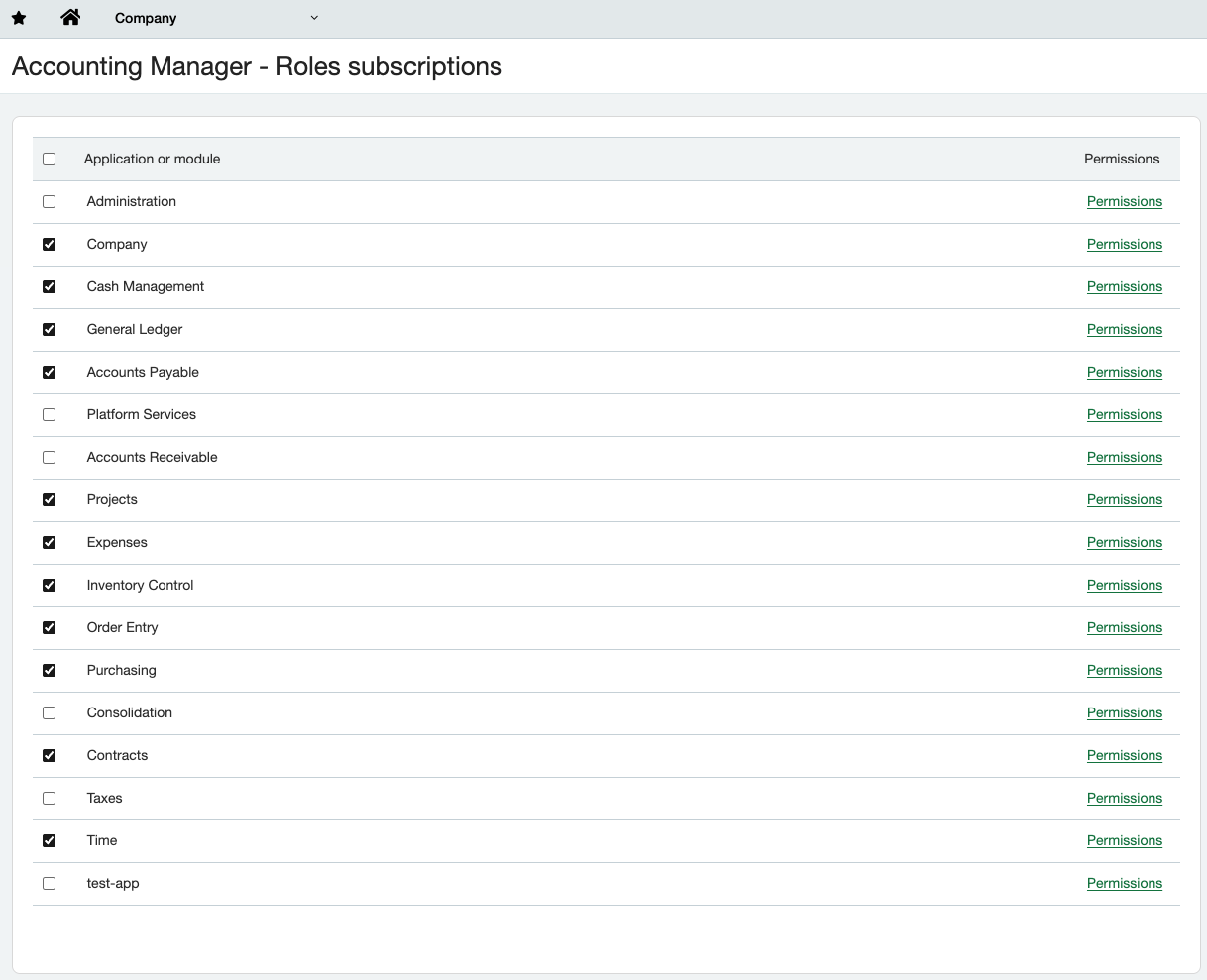
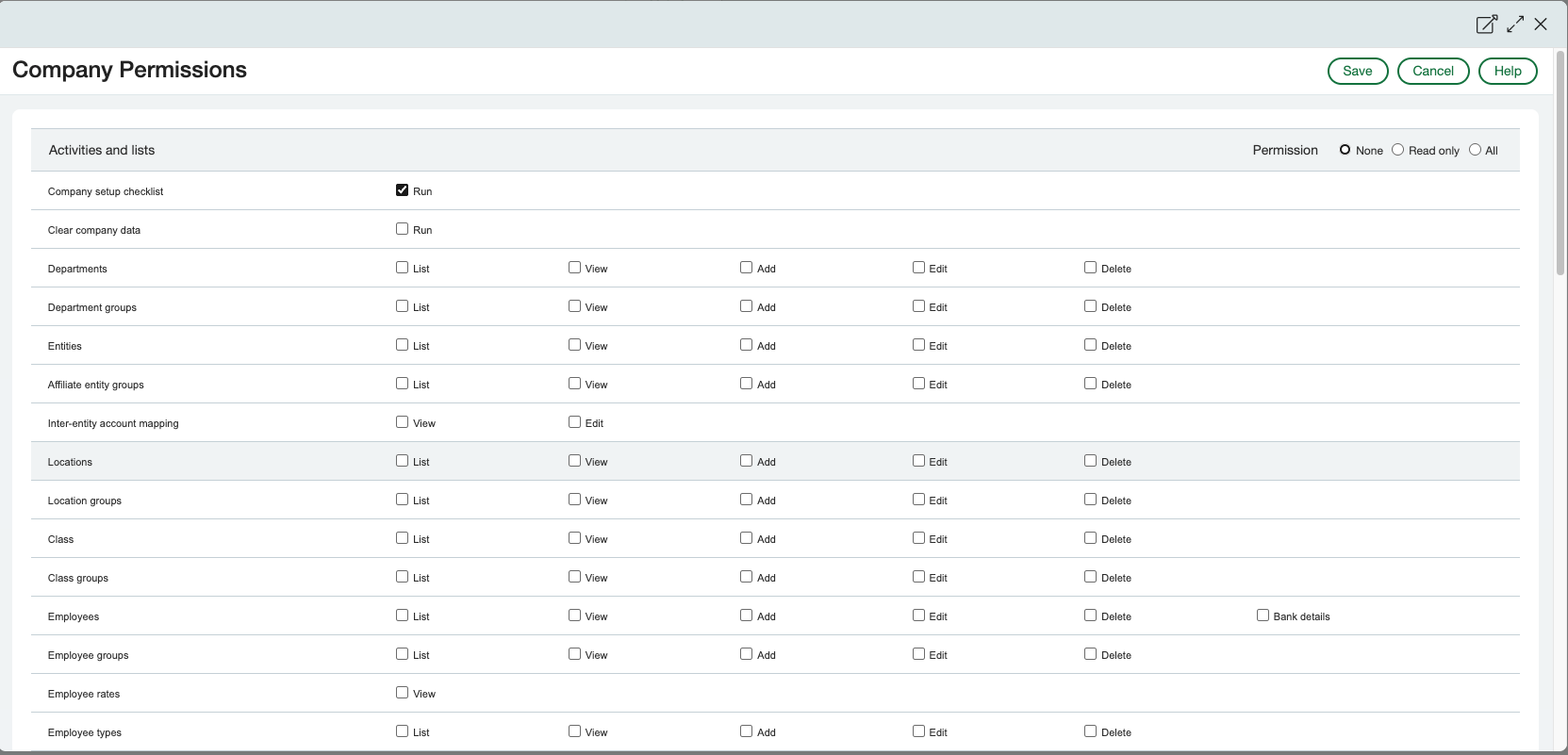
Here, you can also add permissions for that role on a per-module basis, by clicking on Permissions for the module you'd like to edit. Under the "Reference" section of our Sage Intacct docs page, https://docs.rutter.com/platforms/accounting/sageintacct, you can find a non-exhaustive list of Sage object permissions mappings. For example, if I wanted to add permissions to access Locations, I would click into the Company permissions page and check all the Location boxes.
Additional Considerations
For a more in-depth explanation of how Sage Intacct permissions interact with Rutter objects, please refer to our documentation: https://docs.rutter.com/platforms/accounting/sageintacct.
As a best practice, we strongly recommend that connected business users have full admin permissions to ensure the integration functions smoothly.