How do I fix NetSuite permission sync errors?
Last updated: April 6, 2025
For a NetSuite connection that is running into errors during initial or incremental sync, you may see an error in the sync logs for that connection (i.e. at https://dashboard.rutterapi.com/connections/<connection_id>/logs) that suggests there is a permission issue. An example of such an error is:
"Permission Violation: You need the 'SuiteApp Marketplace' permission to access this page. Please contact your account administrator."
This suggests that the end user account is missing required permissions (in this case, the 'SuiteApp Marketplace" permission) for us to sync that entity type from their NetSuite instance.
How do I fix this issue?
Rutter highly recommends using an Administrator account when authenticating the NetSuite instance with Rutter to prevent data sync issues. If this is possible, please have the end user reauthenticate using an administrator account, and that should resolve all the issues.
However, if that is not possible, the end user must add all missing permissions manually to their NetSuite account and reauthenticate the connection (See List of permissions - scroll down to the "Permissions" section). Note that if an administrator account is not used, this may result in further permissions errors in the future.
The list of permissions in our documentation may unfortunately not be comprehensive since we may add support for new entities to sync. If you see other permission errors when syncing on the dashboard, you can find the permission the end user needs to add via the following steps:
Identify the permission that is missing by reading the error message in the sync history page. In our example above, we're missing the 'SuiteApp Marketplace' permission
"Permission Violation: You need the 'SuiteApp Marketplace' permission to access this page. Please contact your account administrator."Tell the end user to add the missing permission by following these steps:
In their NetSuite account, go to Setup → Users/Roles → Manage Users
Find and select the user that is authenticating through Rutter Link
Scroll down and click Edit
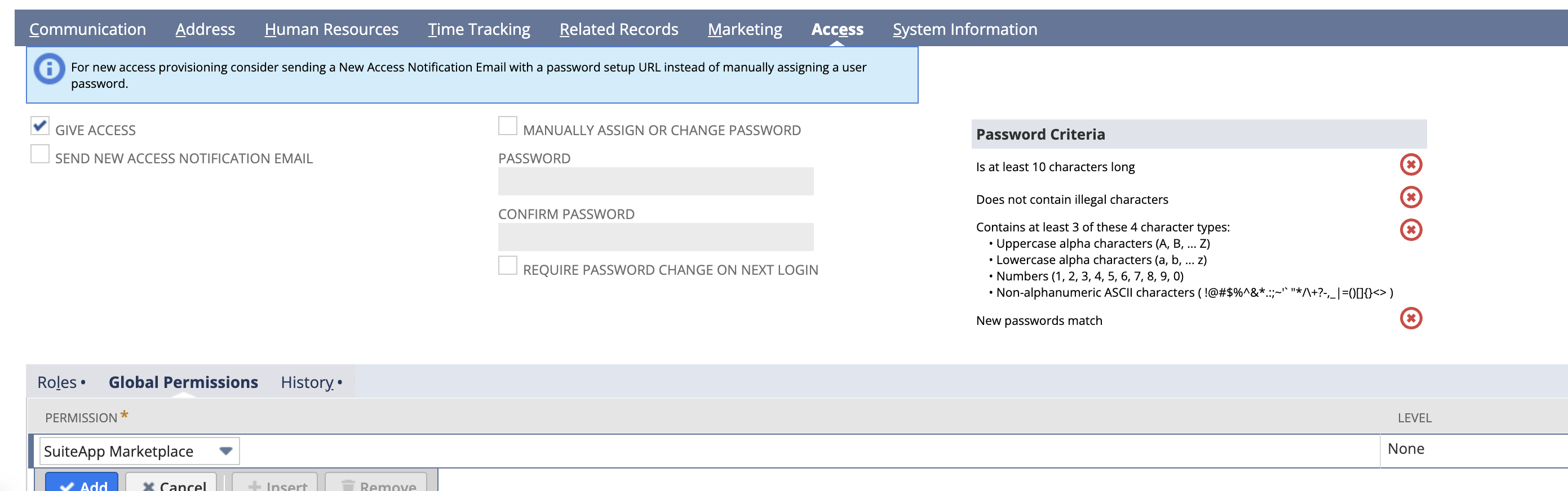
Navigate to Access → Global Permissions
Search for the permission in the error message and select it
Save changes and reauthenticate the Rutter connection
Additional Considerations
Again, we highly recommend that the end user authenticates to Rutter with an administrator account
Missing permissions may cause incomplete data syncing, even if the authentication flow succeeds
If your end user refuses to give access to permissions, then we cannot guarantee that Rutter will work as expected